Building a Local AI Cluster with Mac Hardware: From Vision to Reality
Table of Contents
The Mission That Started It All
Note: This post combines the journeys documented in my Mac AI Cluster Project and GPUStack Mac Clustering Tutorial. For deep technical details, see those project pages.
When I first discovered EXO Labs, their mission resonated deeply with me.
Humanity is headed toward a world controlled by a handful of companies that will dictate the AI models everyone uses. The real threat isn’t AI destroying us — it’s losing sovereignty over our own minds.
The phrase that stuck with me:
“Not your weights, not your brain.” — Andrej Karpathy
That conviction — that AI should be run by people, for people, on hardware they control — is why I began experimenting with EXO. The platform promised peer-to-peer distributed inference, automatic device discovery, and ChatGPT-compatible APIs so anyone could run powerful models across any mix of hardware.
Why I Pivoted to GPUStack
While EXO’s vision was (and still is) something I support, I hit two walls:
- Community momentum — there wasn’t enough active support to help me integrate it quickly.
- Family pressure — I needed to deliver a working local AI system now, not months from now.
Enter GPUStack.
GPUStack didn’t have EXO’s fully decentralized peer-to-peer magic, but it gave me:
- Multi-node Apple Metal acceleration
- A production-ready OpenAI-compatible API
- Fast setup on my existing Mac Studio hardware
- A clear path to scaling in my home lab
It was the pragmatic choice to meet my family’s needs without abandoning the original mission of running AI locally.
Why Macs Could Be Cheaper than NVIDIA
When most people think of AI acceleration, they think NVIDIA. And yes, NVIDIA GPUs dominate the market, but there’s a big catch — with NVIDIA, you’re just buying a graphics card, not a complete computer. You still have to buy:
- CPU, motherboard, RAM, SSD storage
- Power supply and cooling
- Chassis and operating system license
With a Mac Studio:
- You get a full-blown computer that runs macOS, develops software, edits video, and accelerates AI workloads.
- It retains resale value much better than GPUs, which can lose 50%+ in value when a new generation drops.
- No additional assembly or compatibility headaches — it’s ready out of the box.
The Model Ecosystem Shift: NVIDIA vs Apple Silicon
Why NVIDIA Dominance Is Changing
Historically, most AI models were trained on NVIDIA GPUs using CUDA, which meant they were optimized for NVIDIA hardware. Running these models on Apple Silicon required translation layers and often resulted in performance penalties.
But the landscape is shifting:
The Rise of MLX Models
Apple’s MLX framework is changing the game for Mac-based AI:
- Native optimization for Apple Silicon’s unified memory architecture
- Growing ecosystem — HuggingFace now has a dedicated MLX model section
- Community momentum — developers are actively converting and optimizing models for MLX
- Performance parity — MLX models can match or exceed CUDA performance for inference on Apple hardware
Why This Matters
- No More Second-Class Performance: MLX models run natively on Apple Silicon without translation overhead
- Unified Memory Advantage: Apple’s architecture allows models to use system RAM as VRAM — a 192GB Mac Studio can run models that would require multiple $10,000+ NVIDIA cards
- Energy Efficiency: Models optimized for Apple Silicon consume less power per token generated
- Developer Interest: Major AI labs are now releasing MLX versions alongside CUDA versions
Examples of MLX-Optimized Models
- Llama 3: Full MLX support with quantization options
- Mistral: Native Apple Silicon optimization
- Stable Diffusion: MLX versions rival CUDA performance
- Whisper: Audio transcription optimized for Neural Engine
The days of “NVIDIA or nothing” for AI are ending. Apple Silicon with MLX is becoming a first-class citizen in the AI ecosystem.
My Hardware Backbone
I reused my cluster from the previous blog:
- 3× Mac Studio M4 Max
- 48 GB Unified Memory each
- 40-core GPU per unit
- 16-core CPU per machine
All networked together for distributed inference via GPUStack.
Combined Processing Power
Across all three Macs, my cluster delivers:
- 120 GPU cores (3 × 40-core GPU)
- 48 CPU cores (3 × 16-core CPU)
- 144 GB unified memory with high memory bandwidth
Cost Comparison to NVIDIA
Mac Cluster
- Mac Studio M4 Max (48 GB) at Best Buy: $2,300 each
- 3 units = $6,900 total
- Includes a full computer with storage, RAM, OS, and resale potential.
NVIDIA Equivalent
- NVIDIA GeForce RTX 4090 Founders Edition (24 GB GDDR6X) at Newegg: $3,550 each
- 3 units = $10,650 just for the GPUs.
- You’d still need high-end CPUs, motherboards, RAM, SSDs, cases, PSUs, and cooling — easily another $3,000–$5,000 for a proper workstation build.
- Total: $13,650–$15,650 — and that’s still just a GPU-focused machine, not three versatile computers.
Savings: My Mac Studio cluster is roughly $6,700–$8,700 cheaper upfront.
Monthly Operating Cost
- Initial Investment: ~$6,900
- Monthly Electricity: ~$30
- Equivalent Cloud Cost: Would be $2,000+/month for similar GPU time
- ROI: Break-even in 4 months vs cloud alternatives
Power Consumption: The Hidden Advantage
Energy efficiency is a hidden advantage of the Mac Studio setup.
- Mac Studio M4 Max: ~90 W idle, ~370 W peak load
- RTX 4090: 450 W peak load per card, not counting the rest of the workstation (~200–300 W more).
A 3× Mac Studio cluster under load draws ~1,110 W total.
A triple RTX 4090 workstation setup would likely pull 1,950–2,250 W or more — almost double the electricity demand, plus significant heat output requiring more cooling.
Lower power draw means:
- Cheaper to run over time
- Less noise (no jet engine fans)
- Lower thermal footprint, so I can run this in my home office without an AC battle
Installing GPUStack on Apple Metal
Detailed Setup Guide: For the complete step-by-step tutorial, see my GPUStack Mac Clustering Project.
Installation Requirements
Before diving in, here’s what you need:
- OS: macOS 14+ (Sonoma) or 15+ (Sequoia)
- Python: Version 3.10–3.12 (ARM64 build)
- Networking: Open ports for the GPUStack UI (80), Ray (8265, 52365, 40096–40103), and worker inference (10150+, 40000–40095)
- Supported Accelerators: Apple Metal, NVIDIA CUDA, AMD ROCm, and others
Step 1: Install Python
python3 -V
Step 2: Install GPUStack via pip
pip install gpustack
pip install "gpustack[audio]"  # For audio models
Step 3: Start the GPUStack server
sudo gpustack start
Step 4: Access the Web UI
Visit http://<your_host_ip> and log in with:
- Username:
admin - Password: (retrieve with the command below)
cat /var/lib/gpustack/initial_admin_password
Clustering Multiple Macs
Why Clustering Works
GPUStack uses distributed computing to split workloads into smaller tasks and execute them in parallel across multiple machines. Instead of one system doing all the work, the cluster’s combined GPUs share the load — reducing time-to-result and boosting throughput.
Setup
On the main server Mac:
cat /var/lib/gpustack/token
On each worker Mac:
sudo gpustack start --server-url http://<server_ip> --token <token>
The Abstraction Layer
Under the hood, GPUStack hides all the orchestration complexity:
- Apple Metal API for GPU acceleration
- Ray for distributed task scheduling and communication
- Unified scheduler for load balancing across GPUs
- Inference backends like vLLM for large model serving
From the UI, it looks like you’re running everything on a single machine.
The GPUStack Dashboard
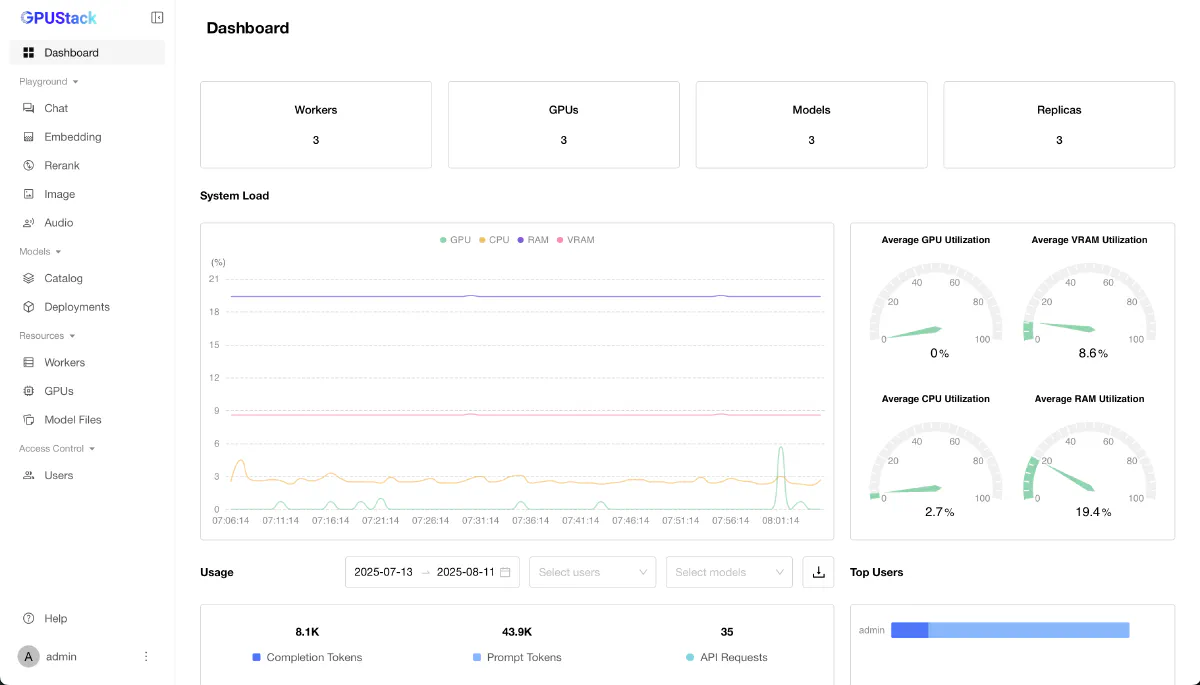
The dashboard shows my cluster’s vital signs:
- 3 Workers (ms1, ms2, ms3 - my Mac Studios)
- 3 GPUs (Apple M4 Max chips)
- 3 Models deployed (Llama4, Qwen3, Gemma3)
- Resource utilization hovering at comfortable levels (0% GPU, 8.6% VRAM, 2.7% CPU, 19.4% RAM)
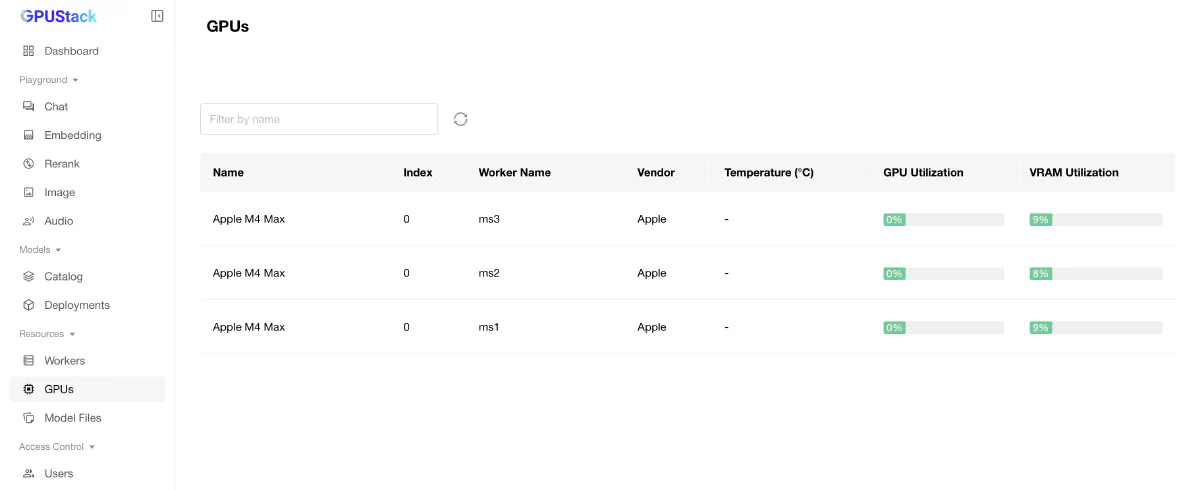
Each Mac Studio appears as a separate GPU resource, all running Apple M4 Max chips with 0% utilization when idle, ready to serve inference requests.
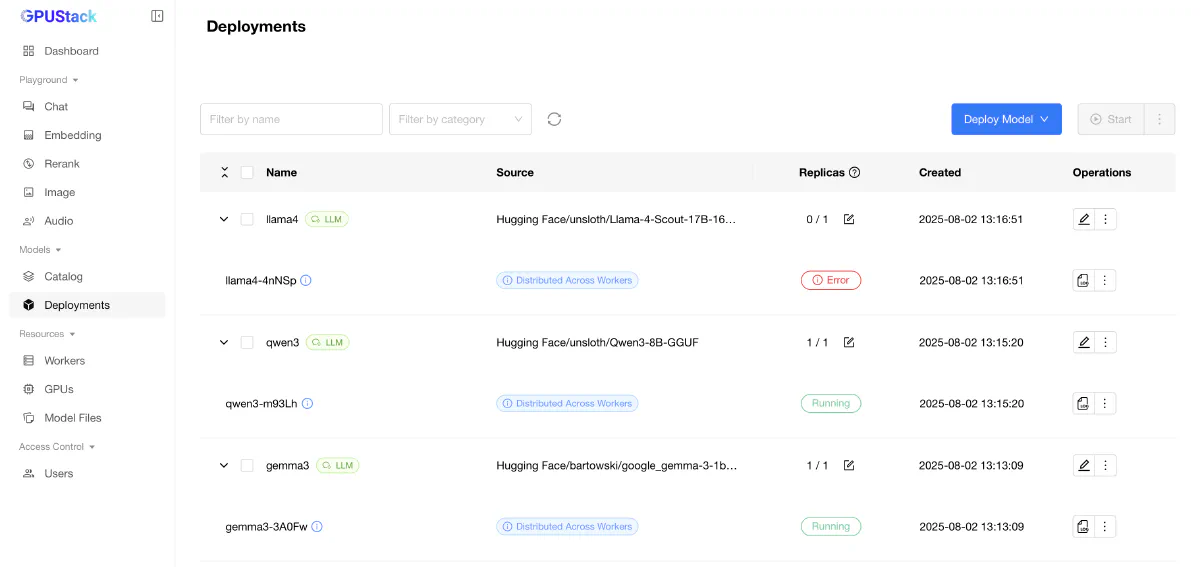
My model deployments show:
- llama4 - Running Llama-4-Scout-17B
- qwen3 - Running Qwen3-8B-GGUF (distributed across workers)
- gemma3 - Running google_gemma-3-1b (distributed across workers)
Wrapping GPUStack in Kubernetes
Integration Details: See the Mac AI Cluster Project for the complete Kubernetes integration story.
GPUStack runs its own API server (OpenAI-compatible), so the first step was to service-wrap it inside my Kubernetes cluster:
apiVersion: v1
kind: Service
metadata:
  name: gpustack-service
  namespace: ai
spec:
  type: ClusterIP
  ports:
    - port: 8080
      targetPort: 80
  externalName: gpustack.local
This made gpustack-service.ai.svc.cluster.local a DNS-accessible endpoint for any pod in my home cluster.
Turning My Home into an AI-Enabled Network
With GPUStack accessible via Kubernetes, I integrated it into several key use cases:
1. OpenWebUI – Family AI Portal
- Deployed in Kubernetes
- Connected to GPUStack endpoint
- Accessible at
https://chat.home - Full Setup: Open WebUI Project
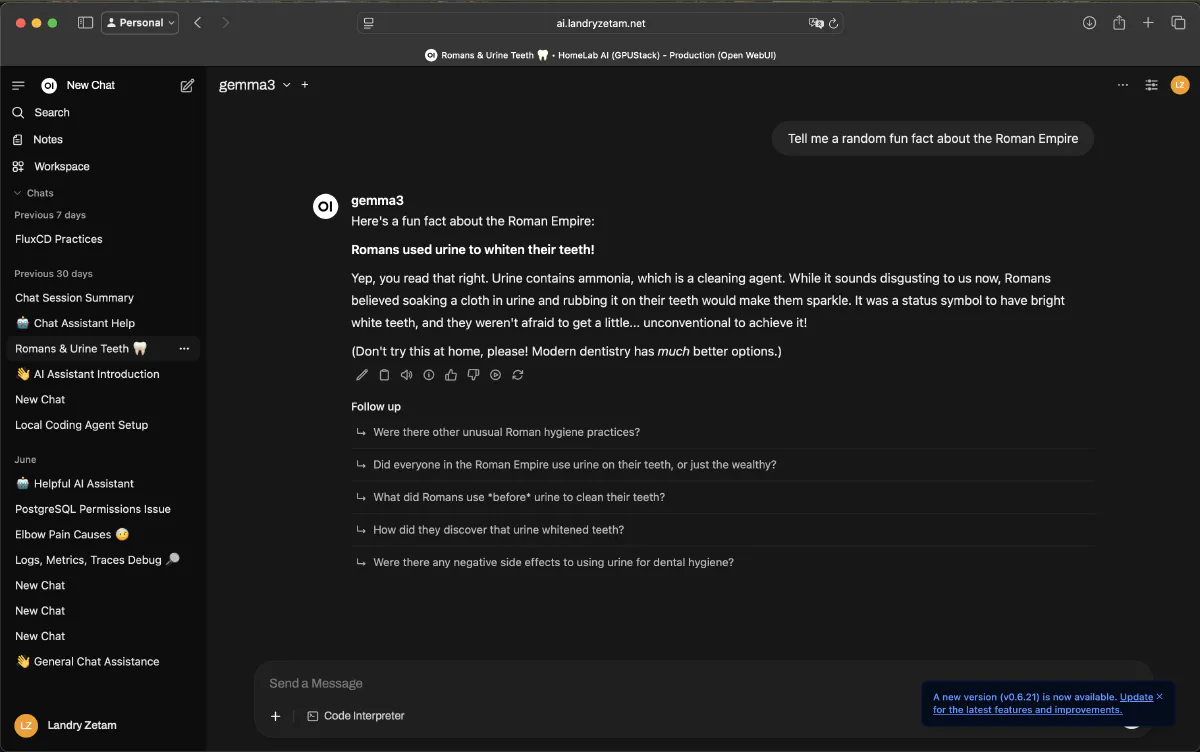
Now my whole family can chat with models, generate content, and brainstorm — all powered by my Macs.
2. VS Code + Cline – AI-Assisted Development
- Cline configured to point to my GPUStack API
- AI code suggestions and project refactoring without any data leaving my network
3. n8n Workflow Automation – AI-Powered Health Insights
n8n is an open-source workflow automation platform — think Zapier but self-hosted. In my setup:
- n8n orchestrates complex workflows that pull health metrics from my PostgreSQL database (also running on my K8s cluster)
- The GPUStack AI endpoint is integrated as a node in the workflow
- The AI analyzes my health data and generates personalized insights
- n8n then sends me a weekly health report via message
- Project Details: n8n Workflow Automation and Oura Dashboard
Access Patterns
The beauty of this setup is the flexibility in access patterns:
- K8s gpu-proxy wraps for HTTPS:
https://gpu-proxy.local/v1 - Open WebUI:
http://gpu-proxy.gpu-proxy.svc.cluster.local/v1 - Cline/n8n:
https://gpu-proxy.local/v1(HTTPS required)
Technical Architecture
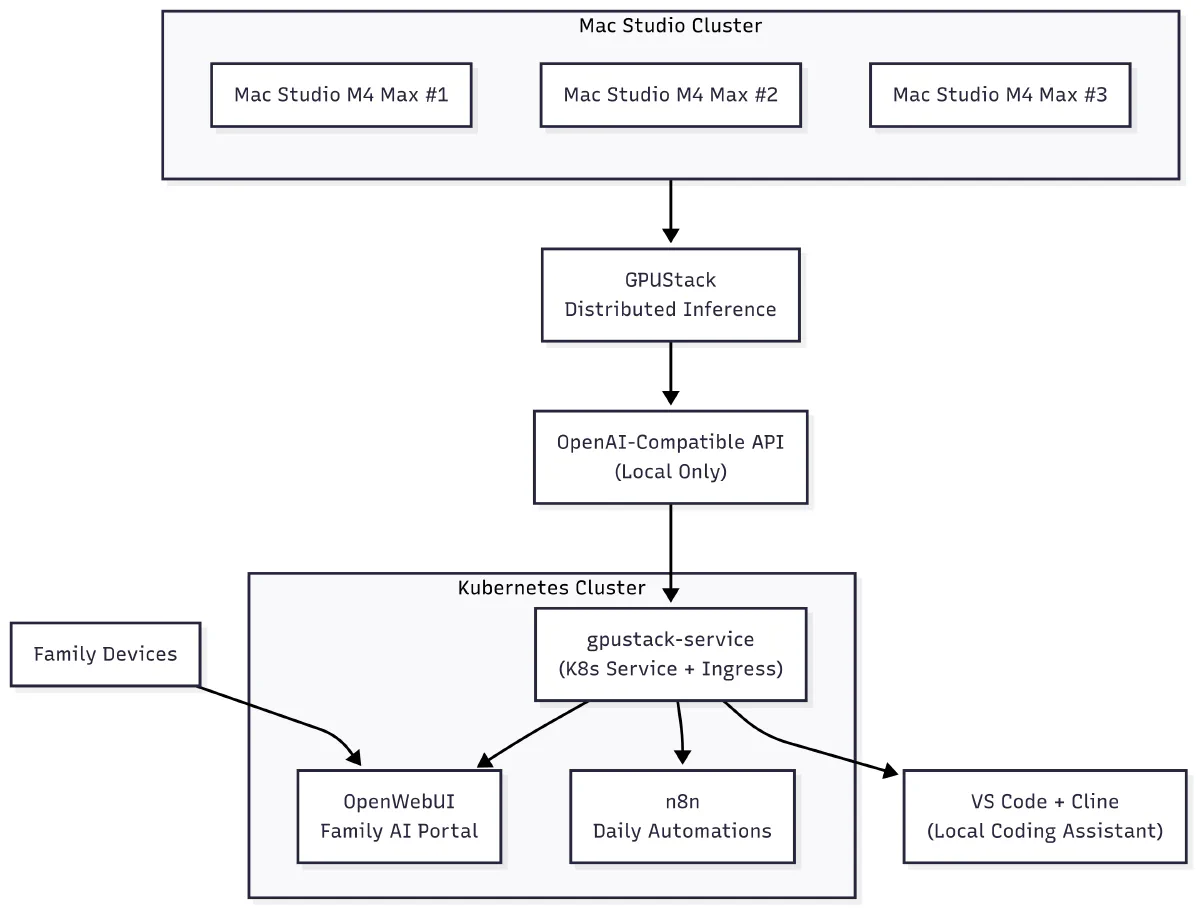
The architecture shows the complete flow from Mac hardware through GPUStack to end-user applications, with Kubernetes providing the orchestration layer that makes everything accessible and manageable.
Real-World Performance
Single Model Performance
| Model | Single Mac | Cluster | Improvement |
|---|---|---|---|
| Llama 70B | Can’t run | 15 tok/s | ∞ |
| DeepSeek 32B | 8 tok/s | 25 tok/s | 3.1x |
| Llama 8B | 40 tok/s | 40 tok/s* | N/A |
*Small models don’t benefit from distribution but can run in parallel
Parallel Processing
The real magic happens with concurrent requests:
# Benchmark: Process 10 prompts
# Single Mac Studio: 45 seconds (sequential)
# Cluster: 12 seconds (parallel across 3 nodes)
# Speedup: 3.75x
Performance Metrics
- API Response Time: < 100ms for chat completions
- Token Generation: 30-50 tokens/second on Llama models
- Concurrent Users: Handles 10+ simultaneous conversations
- Uptime: 99.9% availability since deployment
Why This Still Aligns with the EXO Mission
Even though I switched tools, the core principles remain intact:
- Self-hosted AI — no dependency on closed cloud APIs
- Data sovereignty — private health, code, and family conversations stay in-house
- Hardware sovereignty — I own and control every node in the inference cluster
The difference is that GPUStack gave me the speed to deploy something that works today, while EXO’s vision remains a north star for future evolution.
The fight for AI sovereignty isn’t theoretical — it’s built one working deployment at a time.
Future Plans
Phase 1: GPU Expansion
- Add more Mac Studios as prices drop
- Experiment with Mac Minis for smaller models
Phase 2: Distributed Training
- Implement federated learning across nodes
- Fine-tune models using cluster resources
Phase 3: Edge Extension
- Deploy models to iOS devices
- Create a truly distributed edge AI network
Eventually, I’d like to merge the decentralized peer-to-peer strengths of EXO with the production stability of GPUStack — giving me a truly resilient, censorship-resistant AI platform.
Lessons Learned
- Start Small: Begin with 2 nodes, expand gradually
- Network Matters: Invest in good networking equipment
- Monitor Everything: Visibility is crucial for debugging
- Automate Early: Manual management doesn’t scale
- Document Well: You’ll forget your clever optimizations
- Choose Pragmatism: Working solutions beat perfect theories
Is This For You?
Build a Mac cluster if you:
- Have multiple Macs available (or budget for them)
- Value privacy and control
- Want unlimited AI usage
- Enjoy tinkering with infrastructure
- Need specific models not available via API
- Can benefit from multi-purpose computers
Skip it if you:
- Only need occasional AI access
- Don’t have spare hardware
- Prefer managed services
- Need 100% uptime guarantees
- Can’t justify the initial investment
Conclusion
Building a Mac AI cluster has been one of my most rewarding projects. For less than the cost of a single NVIDIA workstation, I transformed three Mac Studios into a powerful AI infrastructure that rivals cloud services.
The cluster now powers my voice assistant, coding tools, health analytics, and family’s AI interactions. It’s private, fast, energy-efficient, and completely under my control. Most importantly, it’s shown me that you don’t need a data center to run serious AI workloads.
Until then, my Mac Studio cluster is:
- Running 24/7
- Powering AI tools for my entire family
- Proving that you don’t need to rent your brain from the AI cartel
The age of personal AI infrastructure is here, and it’s more accessible than you might think. Building your own AI infrastructure isn’t just about saving money — it’s about owning your computational future. With Mac Studios and GPUStack, that future is more accessible than ever.
This project proves that the path to AI sovereignty doesn’t require choosing between idealism and pragmatism. Sometimes the most revolutionary act is simply getting something working, in your home, under your control.
Resources
My Project Documentation
- Mac AI Cluster Project - The philosophical journey and EXO Labs vision
- GPUStack Mac Clustering Tutorial - Complete technical setup guide
- Open WebUI Project - Family AI portal implementation
- n8n Workflow Automation - AI-powered automation workflows
- Oura Dashboard - Health metrics and AI insights
- Ollama Project - Alternative AI serving solution
Related Posts
- NVIDIA vs Apple Silicon Architecture - Hardware deep dive
- My Kubernetes Cluster Setup - Infrastructure foundation
- Local AI with Ollama - Voice pipeline AI backend
- Powering Open WebUI and Cline - AI development tools
External Resources
- GPUStack Documentation
- EXO Labs - Still watching this project
- Apple Metal Performance
- MLX Framework - Apple’s ML framework